Tags
A tag groups packages under one name, usually a library, so the dashboard can compare them. Tags let you filter the packages list and a repo's components by library, and chart libraries against each other.
For example, to see how far your repos have moved from the old library to the new one, create two tags:
| Tag | Exact names |
|---|---|
acme-ui | @acme/ui |
acme-ui-legacy | @acme/ui-legacy |
Tags apply to every scan already uploaded, including older ones, so you don't need to scan again.
Create a tag
- Select governance in the top navigation and scroll to the Tags section at the bottom of the page.
- Press New tag.
- Type the tag's name,
acme-ui, into the value (e.g. core) box. The name labels the tag's chips, its Tag filter value and its line in charts. - Pick a colour, or keep the one offered.
- Under Exact names, enter
@acme/ui. Both Exact names and Glob patterns take one entry per line, or entries separated by commas. - Press Create. The tag appears in the list with its rule count.
Repeat for acme-ui-legacy with the exact name @acme/ui-legacy.
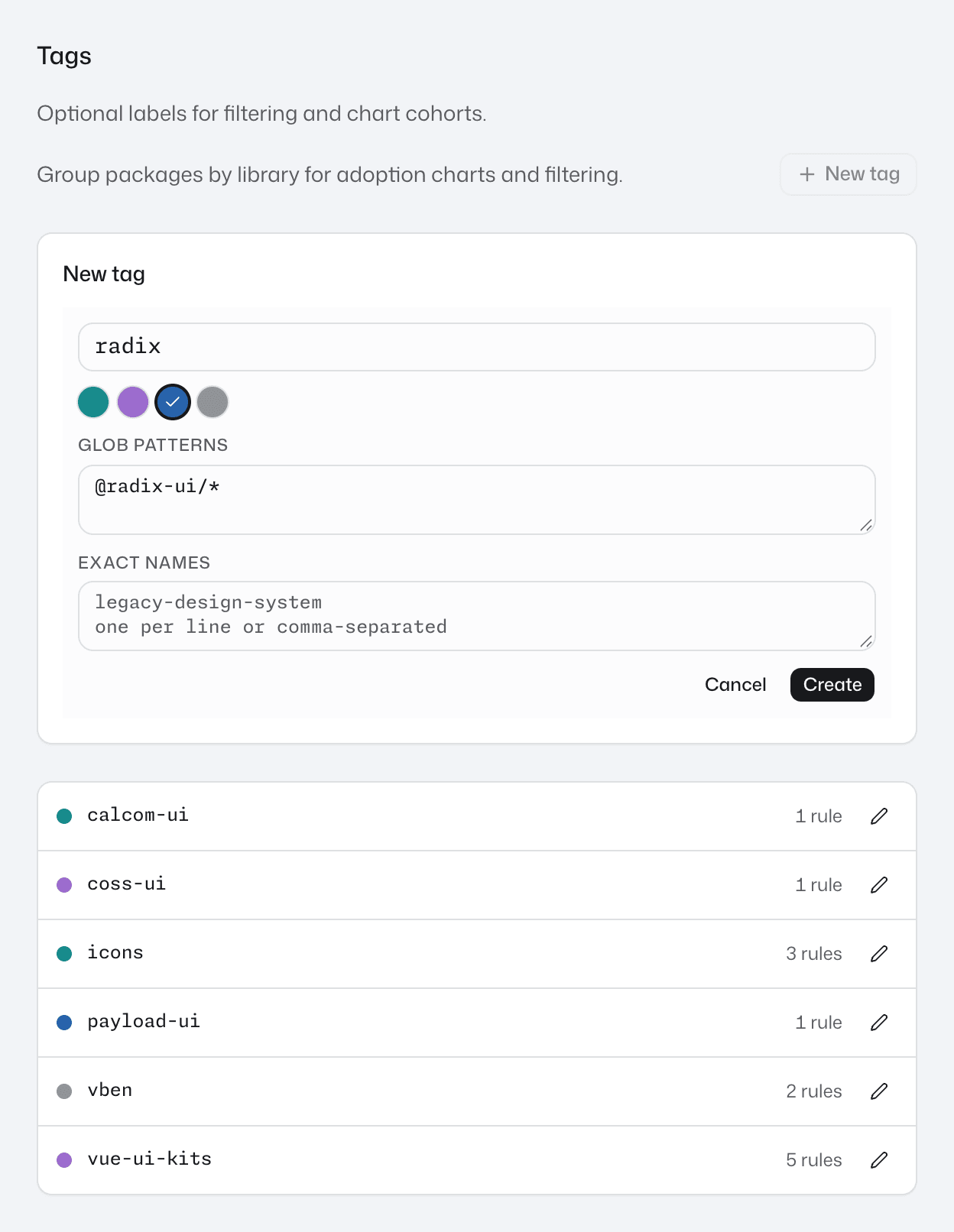
To change a tag later, press the pencil button (Edit tag) on its row, then Save.
Delete in the edit form removes the tag at once, with no confirmation step.
Match packages with a glob pattern
A glob pattern saves listing every package when a library spans several packages whose names share a start. * matches any run of characters, so @acme/icons* matches @acme/icons and any package added later whose name starts the same way.
A pattern must match the whole package name, case included, and * is the only wildcard: braces, ? and square brackets match only themselves.
Check what else a pattern catches. Here @acme/ui* looks right for acme-ui, but it also matches @acme/ui-legacy:
@acme/ui*
@acme/ui-legacy would then count under both tags, so acme-ui would include the old library's usage too. Use the exact name instead:
@acme/ui
A package that matches two tags counts under both. See Why shares can overlap.
Add a package from its page
To add one package to a tag without going to the governance page, open the package from the packages list and press the tag button beside its name. Tick a tag to add the package to that tag's exact names; untick it to remove it. See Tag a package from its page.
Check it worked
- Select packages, press Filter and open Tag.
- Select
acme-ui. The list narrows to the packages the tag matches, each with anacme-uichip. - Select repos and open a repo that uses
@acme/ui. On its Components tab, press Filter, open Tag and selectacme-ui. The table narrows to the components from@acme/ui. See Find components in a repo.
If the tag is missing from the Tag filter, it matches no package in any repo's latest scan. Find the package in the packages list, compare its name in the Package column with the tag's rules, character for character, and fix the rule. A package missing from the packages list isn't used in any latest scan yet, so the tag has nothing to match until a scan that uses it is uploaded.
Next step
With acme-ui and acme-ui-legacy in place, build a chart that compares the two libraries across all your repos.