Repos
The repos area shows every repo the dashboard has a scan for, and what its latest scan found. Use it to check how a repo uses your design system, spot deprecated components, and see what moved since the last scan. For example, open storefront to see that it still uses LegacyButton from @acme/ui-legacy, how many files use it, and whether the latest scan used it less than the one before.
Find a repo
Select repos in the top navigation. The dashboard opens here. Each row is one repo, with Updated (the date of the commit its numbers come from), how many Components its latest scan found, how many are Deprecated, and Δ components: what was added, removed or changed since its previous scan.
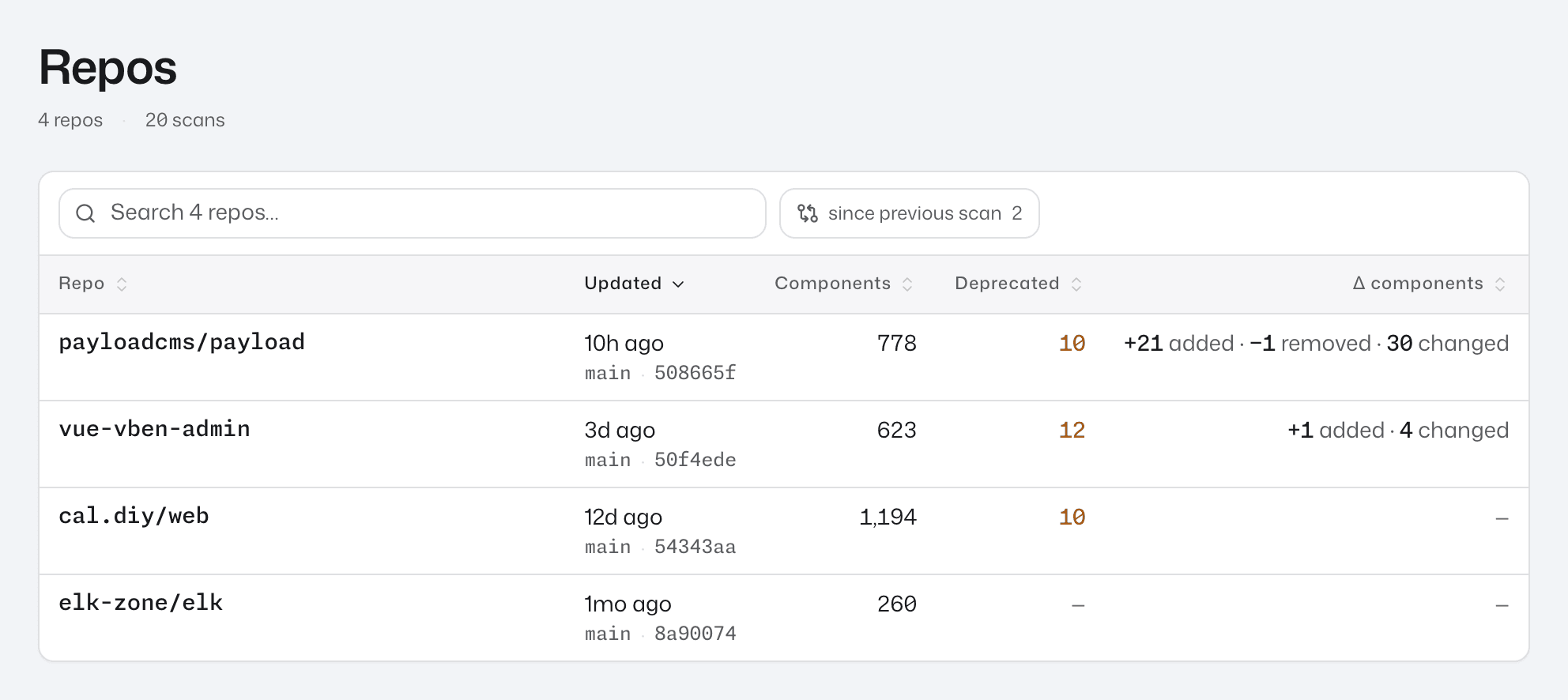
Type in the search box to match a repo's id, git remote or branch. Press the since previous scan chip to list only repos whose latest scan differs from the one before. Select a row to open the repo page.
If the list reads No repos scanned yet., no scan has been uploaded. The page shows the two commands that upload one, and Run in CI sets up uploads from CI.
Read a repo page
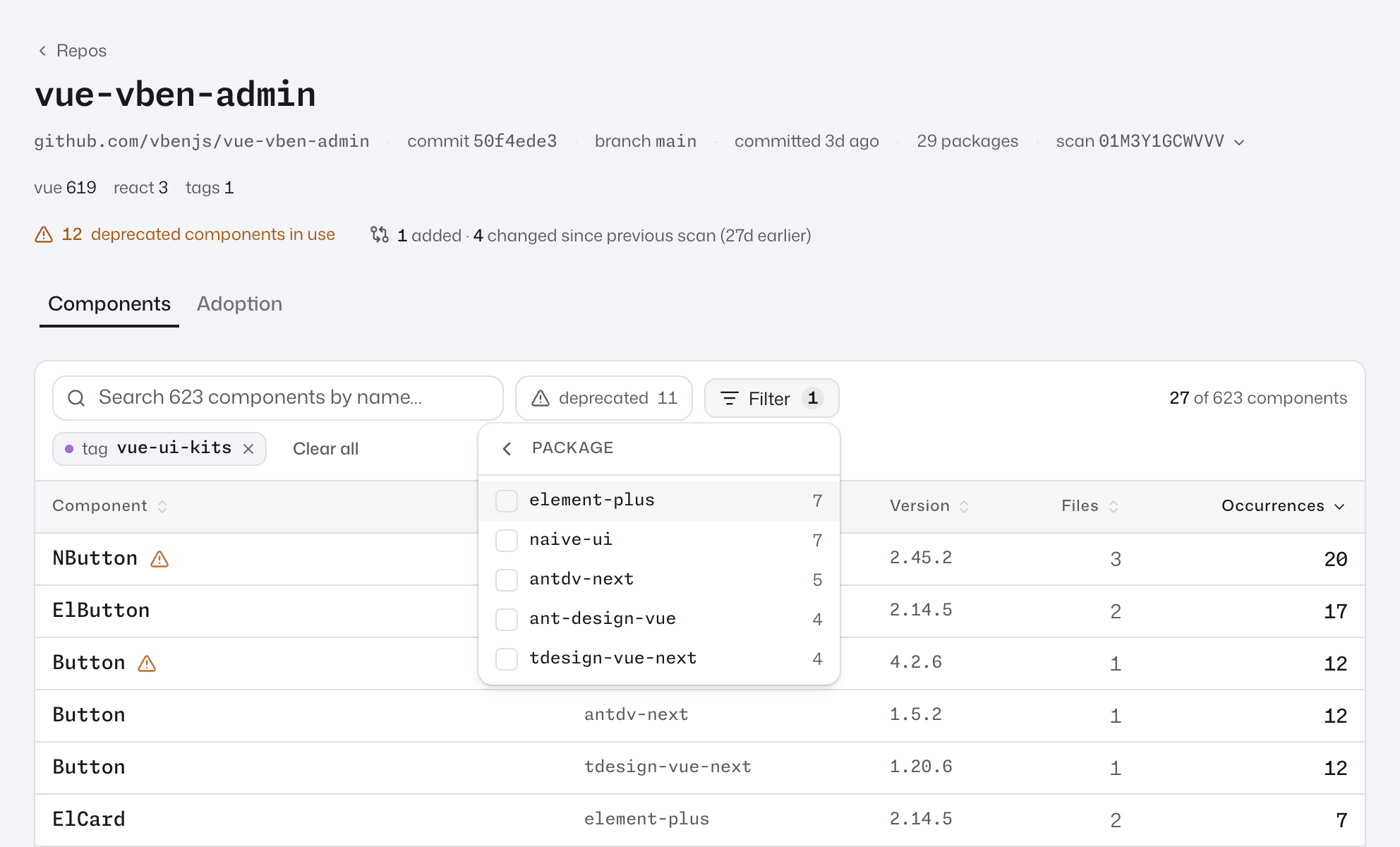
The header line gives the repo's git remote, the commit and branch the scan ran on, the date of that commit (after committed), and how many packages its components come from. When the remote is on GitHub or GitLab, the commit links to it there. When the repo uses more than one framework, a second line counts its components per framework.
Below it, a status line tells you what needs attention:
- Deprecated warning. For example 2 deprecated components in use · 3 fewer than the previous scan. To list just those components, press the deprecated chip above the table.
- What changed since the previous scan. For example 3 added · 8 removed · 18 changed since previous scan (3d earlier). Added components are new in this scan, removed ones were in the previous scan but not this one, and changed ones have a different number of occurrences. To list just those components, press the since previous scan chip above the table. A repo with one scan reads first scan · nothing to compare.
Find components in a repo
The Components tab lists every component in the scan, most-used first. Each row shows the component's Package, Version, how many Files use it and its total Occurrences. Select a row to open the component's page for this repo.
To narrow the table:
- Type part of a component's name into the search box. It also finds a component by a name files render it under, such as
SettingsHeaderafterimport SettingsHeader from "./Header". A row found that way readswritten as SettingsHeaderunder its name. - Press the deprecated chip to show only deprecated components. While other filters are on, it reads, for example, deprecated 3 of 12: 3 of the 12 deprecated components in use match the other filters.
- Press the since previous scan chip to show what was added, removed or changed. Added and removed rows carry a badge, and Occurrences shows the change, for example
49 (+2). - Press Filter to choose by Origin (External for from a package, Local for defined in the repo), Framework, Package, Tag or Occurrences. Picking two values in one facet shows components matching either; filters in different facets must all match.
Framework offers React, Vue, Web component and Tag, and shows only when the repo has more than one. Web component and Tag both pick out web components: Web component the ones a manifest or your code defines, Tag the ones nothing defines. The separate Tag filter picks your library tags.
Each active filter shows as a pill you can remove, and Clear all removes them all.
The same name can appear on two rows when the repo imports a component through two entry points, such as @acme/ui and @acme/ui/button. They are two components, and the subpath row shows button under the name.
Share a filtered view
The tab keeps its search and filters in the page URL as ?q=, so you can copy the address bar and share the filtered table. To write or edit a link by hand, use these tokens:
| Token | Example |
|---|---|
name: | name:Button |
scope: | scope:external, scope:local |
kind: | kind:react, kind:vue, kind:wc, kind:tag |
package: | package:"@acme/ui" |
tag: | tag:acme-ui |
deprecated: | deprecated:true, deprecated:false |
occurrences: | occurrences:>=10 (also >, <, <=, =) |
changed: | changed:true |
Separate tokens with spaces; all of them must match. Put a value with a space, /, : or parentheses in double quotes. Text without a token is ignored, so search names with name:. Repeating kind:, package: or tag: matches any of the values. For example:
package:"@acme/ui-legacy" deprecated:true occurrences:>=10
Follow adoption in a repo
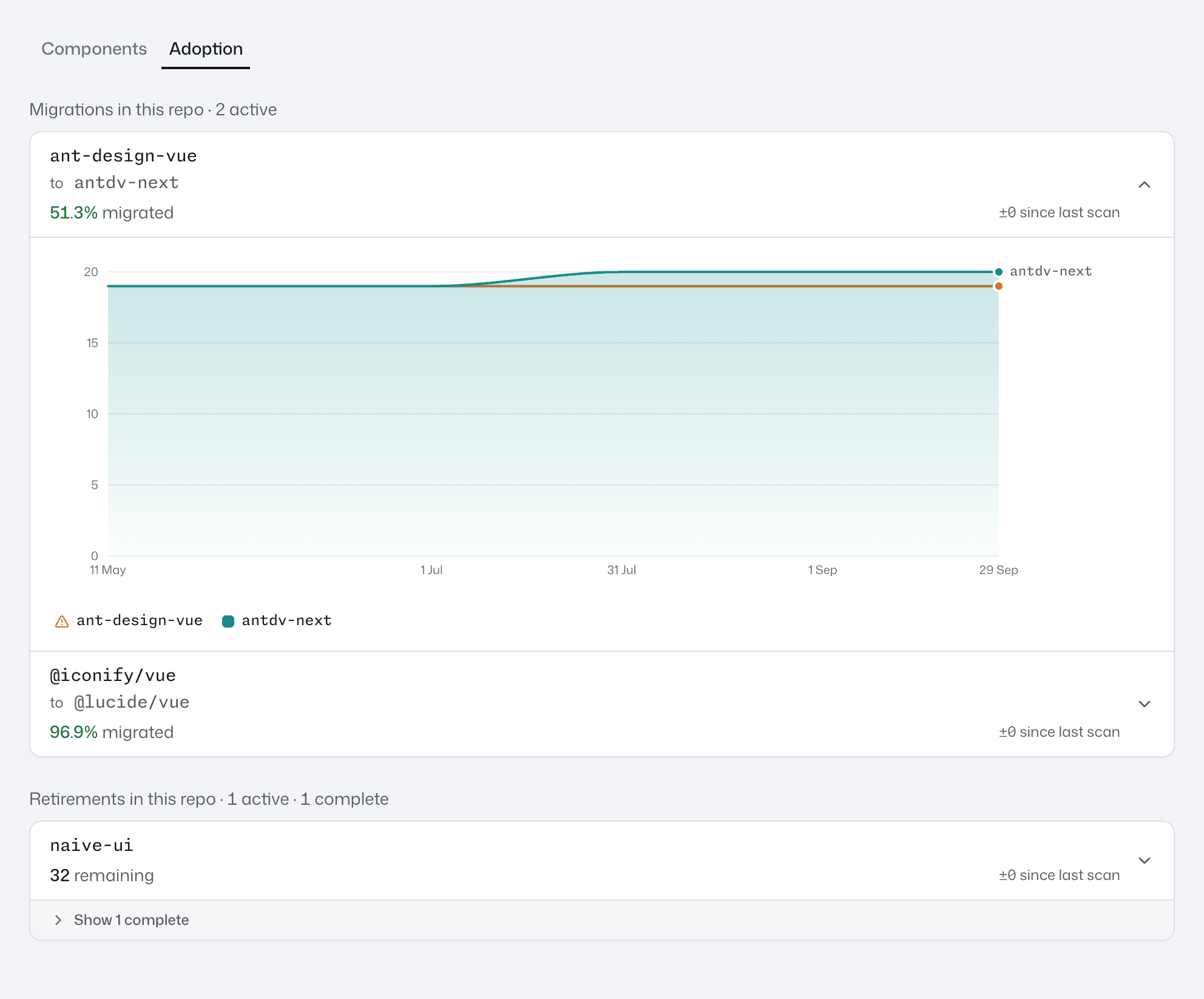
The Adoption tab follows each migration and retirement that touches this repo, counting this repo alone. Migrations in this repo shows each one's progress as a share migrated, and Retirements in this repo as a count of occurrences remaining. Finished ones are kept behind Show N complete.
Select a row to open its chart: occurrences over time in this repo, scan by scan.
If the tab reads No migrations or retirements tracked yet., no lifecycle record covers anything this repo has used. Open Governance takes you to the page where you add one; Track a migration walks through it. Reading the numbers explains how progress is counted.
Look at an older scan
Press the scan button in the header (it shows the scan's id) to open Recent scans, and pick one. View all N scans → opens the repo's Scan history, one row per scan, newest first. Committed is the date of the scanned commit and Scanned is when the scan reached the dashboard. view scan opens the repo page on that scan. The dashboard can't show a scan marked couldn't be prepared or can't be read. For couldn't be prepared, ask your dashboard administrator to retry it. For can't be read, scan that commit again to replace it.
An older scan shows a banner: Viewing an older scan: committed 3mo ago, scanned 2d ago. Component pages show the latest scan. The header, status line and Components tab describe the older scan, and what changed is compared with the scan before it. A component's page opened from the table still shows the latest scan, and the Adoption tab doesn't change with the scan you pick. Press view latest → to go back.
The page URL carries ?scan= while an older scan is shown, so a shared link opens the same scan.
If a repo's latest scan isn't ready, its pages show its newest scan that is, under a band such as The latest scan couldn't be prepared · Showing 35e61ed, committed 23h ago. The repos list does the same for each repo, and names any repo it leaves out because none of its scans is ready. See When a page shows Preparing scan data for what to do.
If a page shows Preparing scan data instead of its content, the dashboard is still getting that scan's data ready, and the page loads by itself when it's done. See Preparing scan data.
Scan data can't be read means the dashboard can't read a stored scan the page needs. See Scan data can't be read.
Next step
Found a component you want to follow across repos? Find where a component is used takes you from its name to every repo and call site that uses it.