Packages and versions
The packages area lists every package your repos' components come from, counted from each repo's latest scan. Use it to answer three questions about your design system: which packages are in use, which are on more than one version, and which still carry deprecated components. For example, open @acme/ui to see that storefront is on 4.2.0 while checkout is still on 3.8.1, and which of its components each repo uses.
Find a package
Select packages in the top navigation. Each row is one package, with how many Repos use it, how many of its Components are used, its Version, its total Occurrences and how many Deprecated components are in use. The most-used packages come first; select a column header to sort by it.
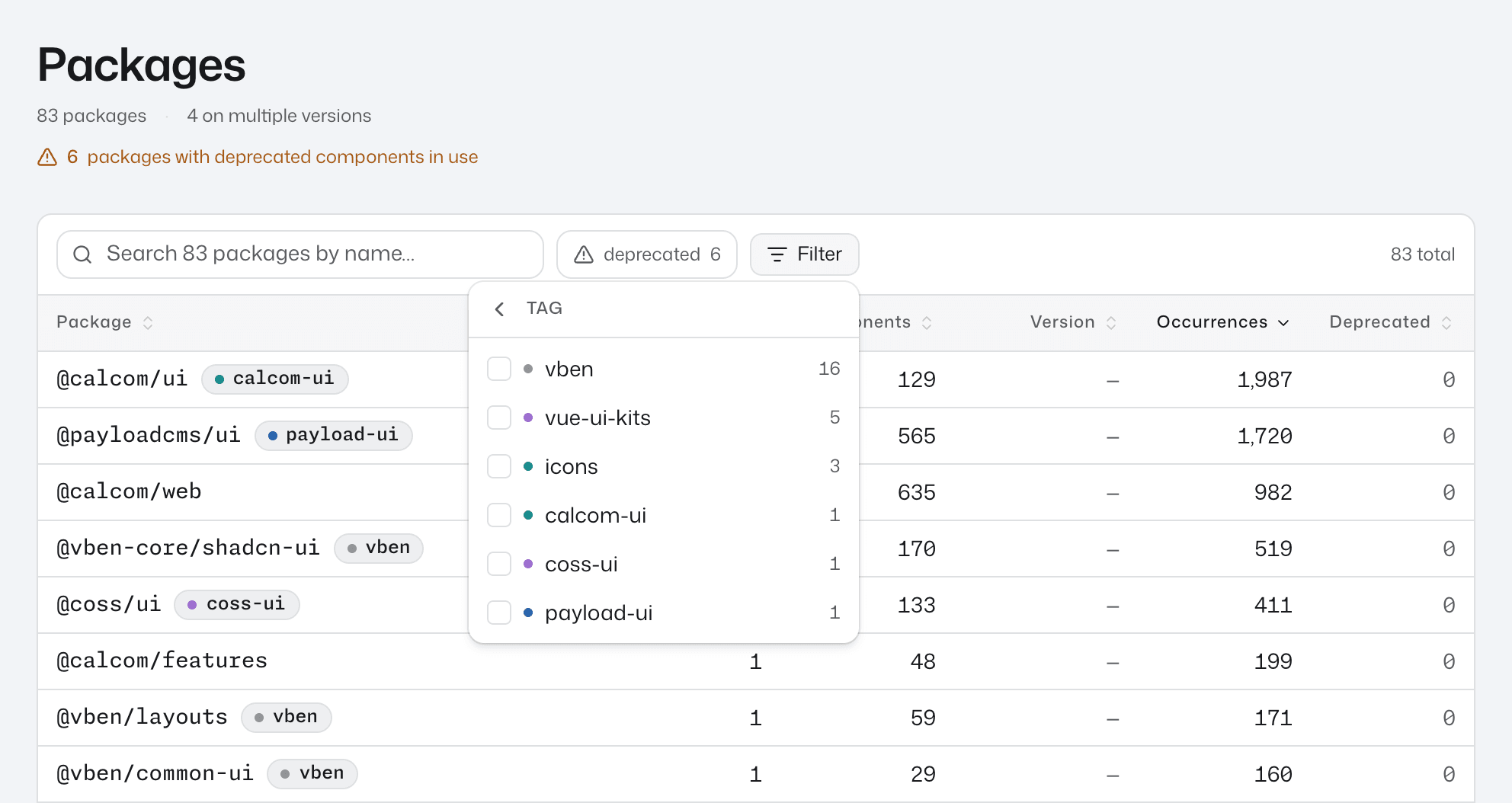
Two lines under the title answer the common questions. Each shows only when its count is above zero:
- N on multiple versions counts the packages that repos use at more than one version.
- N packages with deprecated components in use counts the packages that still have deprecated components in use.
To narrow the list:
- Type part of a package name into the search box.
- Press the deprecated chip to show only packages with deprecated components in use. While other filters are on, it reads, for example, deprecated 1 of 3: 1 of the 3 packages with deprecated components in use matches the other filters.
- Press Filter to choose by Tag or by Versions: Multiple versions, Single version or Unversioned. Picking two tags shows packages that carry either; filters in different facets must all match.
Versions shows only when your other filters leave packages in more than one of those groups.
The search and each Filter choice show as a pill you can remove, and Clear all removes every filter.
The Version column shows the version itself, such as 4.2.0, or a count such as 3 versions when the scans recorded more than one. Sort by Version to bring the packages on the most versions to the top.
If the list reads No packages tracked yet., no scan has been uploaded. Run in CI sets up uploads.
Read a package page
Select a row to open the package's page. The header shows the package's tags and frameworks, and how many repos, components and occurrences use it.
Below that, a version bar splits the package's occurrences by version. The highest version found in the scans is coloured and every older one is grey, so the grey share is the code still on an older version. Versions explains what counts as highest.
When deprecated components are in use, a deprecated components in use line counts them. When a lifecycle record covers the whole package, a line reads Superseded by → with its successor, or Retired · with the reason, and links to the record on the governance page.
See who uses it
Used in has one row per repo and version, so a repo on two versions of @acme/ui gets two rows. In the Version column a coloured dot marks the highest version and a grey dot every other, which shows at a glance which repos are behind. Updated gives the date of the commit each repo's numbers come from.
Select a row to open that repo's Components tab filtered to this package. See Find components in a repo.
See which components are used
Components lists the package's components with how many repos use each (Consumers) and their total Occurrences, most-used first. Search by name, or press the deprecated chip to show only deprecated components.
The table also lists components with no occurrences, so it can have more rows than the header's component count.
Select a component to open its page across repos. See Find where a component is used.
Tag a package from its page
Press the tag button beside the package name to open Tag this package, then tick a tag to add the package to it or untick to remove it. The tag chips beside the name update straight away.
A tag shown ticked, greyed out and marked via rule applies through one of its glob patterns, and you change it on the governance page. The tag button appears once at least one tag exists. To create tags and cover a whole library at once, see Tags.
Share a filtered list
The packages list keeps its search and filters in the page URL as ?q=, so you can copy the address bar and share the filtered list. To write or edit a link by hand, use these tokens:
| Token | Example |
|---|---|
name: | name:acme |
tag: | tag:acme-ui |
versions: | versions:multi, versions:single, versions:unversioned |
deprecated: | deprecated:true, deprecated:false |
Separate tokens with spaces; different tokens must all match, and repeating tag: matches any of the tags. Put a value with a space, /, : or parentheses in double quotes, as in name:"@acme/ui". Text without a token is ignored, so search names with name:. For example:
tag:acme-ui versions:multi deprecated:true
A package page's Components table keeps its search and deprecated chip in the URL the same way, using name: and deprecated:true.
Good to know
- A package that only re-exports components from another package isn't listed. If your code imports
Buttonthrough@acme/all, which re-exports it from@acme/ui,Buttoncounts under@acme/ui, at the version of@acme/uithat is installed. - A dash (
—) in Version means no version was recorded: a workspace package holding components defined in the repo, or an installed package whose version the scan could not read. - A web component is listed under a package only when the scan links the tag to it. Link web components to your package shows how.
- Deprecated counts add up across repos. On the packages list and a package page, a deprecated component used in three repos counts three times. See Where "deprecated" comes from.
Next step
A package on several versions, or with deprecated components still in use, is often where a migration starts. Track a migration records the move from @acme/ui-legacy to @acme/ui and charts its progress repo by repo.